Update 19.07.2013: This guide is outdated. Read How to Generate JavaScript Documentation with JSDoc 3 and PhpStorm
PhpStorm’s code assist feature nicely displays our own JavaScript code documentation. But what if you wanted to create a separate documentation you can hand out or integrate into your website? Then you should use jsdoc-toolkit. You can configure and run jsdoc-toolkit directly from PhpStorm. Here is what you have to do:
File -> Settings -> External Tools ->Add…
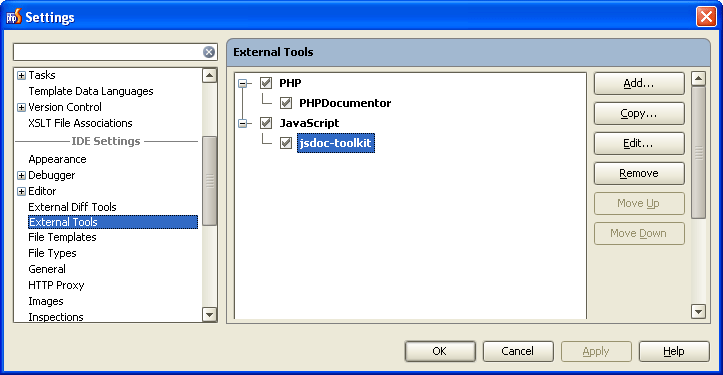
Provide the following information:
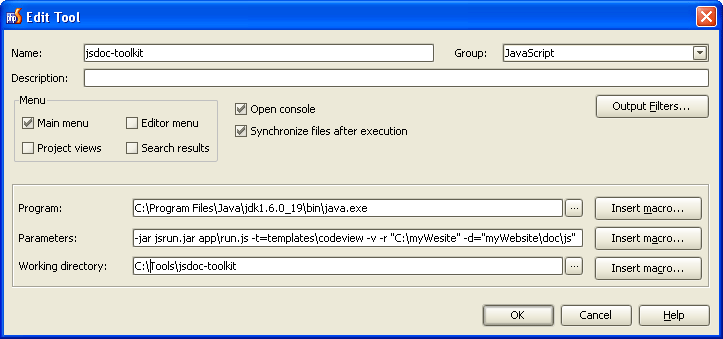
Name: jsdoc-toolkit
This name will show up in your Tools Menu. If you fill in a group name such as JavaScript, then the entry will become a submenu of JavaScript.
Program: <pathToJava.exe>
Fill in the path to your java executable, e.g. C:Program FilesJavajdk1.6.0_19binjava.exe
Parameters: -jar jsrun.jar apprun.js -t=templatescodeview -v -r “<pathToSourceDirectory>” -d=”<pathToDestinationDirectory>”
The source directory is the one you want to document, e.g. where your JavaScript files reside in. The destination directory is where you want the documentation to be created in. Please note, that paths are given without a trailing slash. In case your path arguments contain spaces it is important to enclose these parameter in quotes. For more information about the parameters see the jsdoc-toolkit wiki.
Working Directory: <pathToJsdocToolkit>
Fill in the path to your jsdoc-toolkit installation directory, e.g. C:Website Toolsjsdoc-toolkit
In case you also wanted to create documentation for your PHP code, you should read the blog entry ‘How to create PHP documentation in PhpStorm‘.