Using a Wacom pen tablet inside VirtualBox 6

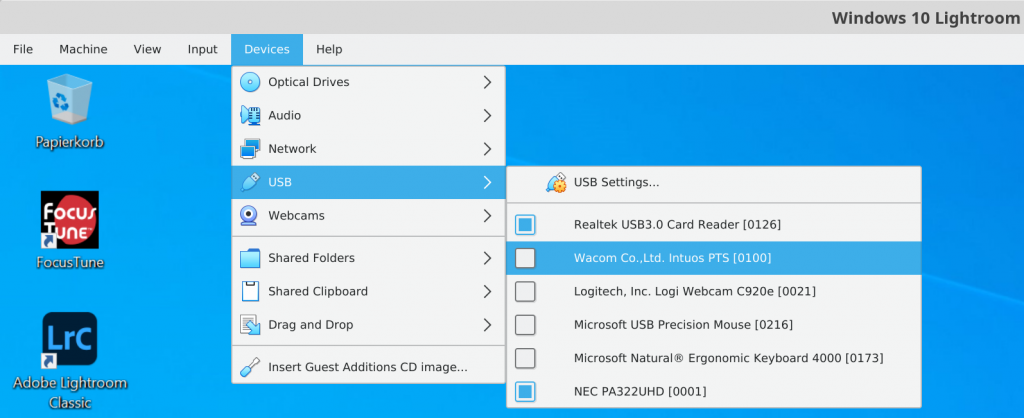
I have the tablet wacom intuos pen & touch small CTH-480, which I wanted to use for photo editing in Adobe Lightroom. Since I work under Linux Mint 20, I have a virtual machine running Windows 10 and Lightroom Classic 10. Unfortunately, I got the pen to work as a mouse only by disabling it as an input device, which prevents the buttons from being configurable in the Wacom Desktop Center app.

Screenshot showing the Devices menu of VirtualBox. To use the pen as a mouse, I needed to disable the Wacom tablet in the USB settings. Unfortunately, this prevents detection by the Wacom Desktop Center app and as a consequence the buttons on the tablet can’t be configured.

If I turn the tablet in the USB settings on, the Wacom Desktop Center properly detects the tablet, but movements of the pen are not translated into mouse pointer movements.

Quick Tip: Access Oracle LOB directly from PHP

Access the data from a clob/blob field without having to call OCI-Lob->load() first

When you fetch (binary) data from an Oracle database field of type BLOB or CLOB with OCI8, the (binary) large object is normally returned as LOB descriptor (an instance of the OCI-Lob class). To retrieve the data, you have to call the object’s load or read method, e.g.:

// load and render an image from an oracle database
$sql = 'SELECT myBlob FROM myTab WHERE id = :imgId';
$stmt = oci_parse($dbHandle, $sql);
oci_bind_by_name($stmt, ':imgId', $imgId, 3, OCI_B_INT);
oci_execute($stmt);
$record = oci_fetch_array($stmt, OCI_ASSOC);
$photo = $record['MYBLOB']->load();
header('Content-Type: image/jpeg');
echo $photo;

The call to the load() method can be omitted by passing the constant OCI_RETURN_LOBS to the fetch method, e.g.

...
$record = oci_fetch_array($stmt, OCI_ASSOC + OCI_RETURN_LOBS);
header('Content-Type: image/jpeg');
echo $record['MYBLOB'];

Note: When using oci_fetch_all() lobs are loaded implicitly without having to pass the flag OCI_RETURN_LOBS.

PHP and SQLite FTS4: How to process the matchinfo function part II

Understanding the output from the matchinfo() function

Part I: Reading the binary output from the matchinfo() function

To analyze what the output of the matchinfo() function means, we’ll use a different example dataset than the one from the SQLite FTS4 documentation. Since I’m a bird photographer, let’s create a virtual FTS4 table holding information about photos of birds. It consists of the five columns id, title, description, species and common name (note: id is the image id and not the FTS4 rowid). Then we fill the table with four records making up our example data:

// create the example database
try {
  $db = new PDO('sqlite:example.sqlite');
} catch (PDOException $error) {
  echo $error->getMessage();
}

// create a virtual fts4 table and populate it with example data
try {
  $db->exec("CREATE VIRTUAL TABLE images USING fts4(imgId, title, description, species, speciesEn);
    INSERT INTO images VALUES(1, 'Great Spotted Woodpecker', 'A great spotted woodpecker with a caterpillar in its beak.', 'Dendrocopos major', 'Great Spotted woodpecker');
    INSERT INTO images VALUES(2, 'Woodpecker at the pond', 'A green woodpecker drinks water.', 'Picus viridis', 'Green Woodpecker');
    INSERT INTO images VALUES(3, 'Woodpecker', 'A middle spotted woodpecker is looking for food on an oak tree.', 'Dendrocopos medius', 'Middle Spotted Woodpecker');
    INSERT INTO images VALUES(4, 'Woodpecker', 'A lesser yellownape showing its green wings.', 'Picus chlorolophus', 'Lesser Yellownape');");
} catch (PDOException $error) {
  echo $error->getMessage().'<br>';
}
Continue reading “PHP and SQLite FTS4: How to process the matchinfo function part II”
PHP and SQLite FTS4: How to process the matchinfo function part I

Reading the binary output from the matchinfo() function

SQLite’s MATCHINFO() function provides metrics that are useful for filtering or sorting results of a query according to relevance. The function returns a binary string representing a variable number of 32-bit unsigned integers in machine byte-order. It can be read into an array of integers using the PHP unpack() function passing 'L*' as the format parameter.

Continue reading “PHP and SQLite FTS4: How to process the matchinfo function part I”

SQLite FTS4: Standard vs Enhanced Query Syntax

The SQLite documentation talks about two ways to perform full text queries: standard or enhanced query syntax. Be aware: which one is available depends on how SQLite was compiled. You might, like me, run into troubles when developing locally using one syntax and then publishing remotely only to find out your query does not return anything. You can check which version is supported by your server by querying the PRAGMA compile_options, e.g. for PHP:

Continue reading “SQLite FTS4: Standard vs Enhanced Query Syntax”

Minify CSS with PhpStorm automatically

Installation guide for PhpStorm 2019.3.1 to minify CSS files automatically after editing using the command line interface for CSSO as a file watcher. You could also use yuicompressor instead, but version 2.4.8 chokes on CSS @keyframes rules.

Continue reading “Minify CSS with PhpStorm automatically”

BIOS update with Linux Mint

Updating your BIOS on Linux Mint 19 can be as easy as on Windows. If your computer is listed on the Linux Vendor Firmware Service, then all you have to do is:

~ $ sudo apt install fwupd
~ $ fwupdmgr get-updates
~ $ fwupdmgr update

The firmware-manager might even get included in the next version of Linux Mint 20.

Linux Mint 19.1: Lightning Calendar in English, but dates in the 24-hour time format

I like having the user interface of my Linux Mint 19.1 in English, but the regional settings such as numbers and currency in a different language such as Swiss German.

Screenshot of the Language Settings dialog in Linux Mint 19.1
Continue reading “Linux Mint 19.1: Lightning Calendar in English, but dates in the 24-hour time format”

VirtualBox 6: How to enable symlinks for shared folders

For security reasons, creating symbolic links in a shared folder is disabled in the guest OS (ticket 10085 and manual 5.3 Shared Folders). If you trust your Linux guest OS, you can enable symlinking from the host OS with the following command:

~ $ VBoxManage setextradata "VM_Name" VBoxInternal2/SharedFoldersEnableSymlinksCreate/Folder_Name 1

Replace VM_Name and Folder_Name with your own names. To get a list of names of your virtual machines, execute in the host console:

~ $ VBoxManage list vms

You can also list information about a specific machine with:

~ $ VBoxManage showvminfo "VM_Name"

Now you can start your Linux guest OS and create the symbolic link, in my case  I wanted to point my shared folder to the apache directory /var/www/html, e.g.

~ $ sudo ln -s /media/sf_Websites /var/www/html

Note: On a Windows host you need to enable symlinks also on the OS level for the current user, otherwise you have to run VirtualBox with administrator rights, @see How do I create a symlink in Windows

The search for the Okinawa Rail

The Okinawa Rail is a flightless bird endemic to the Yambaru region in the north of Okinawa. The Japanese call it Yambaru Kuina, and though stylized versions of it are ubiquitous on packaging, advertising or road signs, most people have never actually seen it.

photo of street sign with a stylized Okinawa rail photo of a warning sign depicting an Okinawa rail
Okinawa rail on street signs.
Continue reading “The search for the Okinawa Rail”